
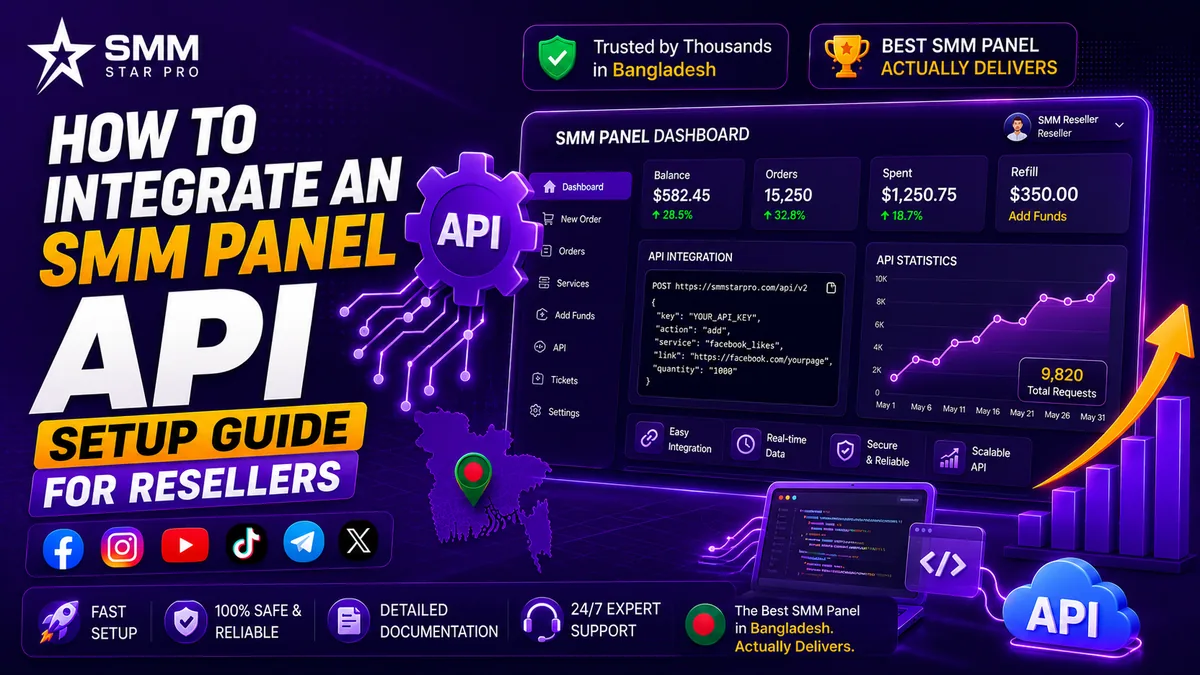
Step-by-step SMM panel API integration: get your API key, connect endpoints, import services, place orders, and check status. Code examples included.
SMM panel API integration is how you connect your reseller storefront to a provider’s services so that orders forward and fulfill on their own. The provider hands you an API URL and a key, and from there you send POST requests that cover five core actions: list services, add an order, check order status, check balance, and request a refill. Most providers use one shared format, so a lot of the work is honestly copy-paste with small tweaks.
The API is the thing that turns a manual side hustle into a real automated business. Without it, you would be copying every order by hand into the provider’s dashboard. With it, a customer’s purchase on your panel fires off an instant order to the provider with nobody sitting in the middle. That automation is the technical backbone behind running an SMM reseller operation that does not eat your whole day, and it is a core step if you are starting an SMM business in Bangladesh from scratch.
What is an SMM panel API?
An SMM panel API is a set of HTTP endpoints that let your software place and manage orders programmatically. Almost every SMM provider follows the same de-facto standard that PerfectPanel and SMMPanelScript made popular: a single endpoint URL that accepts POST requests, with an action parameter that selects the operation you want. Because the standard is shared, code you write for one provider usually works with another after you swap the URL and key. If you are still getting your bearings, our complete SMM panel guide covers how the whole system fits together before you dive into the code.
These are the five operations you will actually use day to day: listing services, adding an order, checking an order’s status, checking your balance, and requesting a refill.
Where do you get your API key?
Log into your provider account and open the API section, often labeled “API” or “Developers.” There you will find two things:
- API URL: the endpoint, for example https://smmstarpro.com/api/v2
- API key: your private authentication token
Treat the key like a password. It authorizes orders against your funded balance, so never expose it in client-side JavaScript and never commit it to a public repository. Store it as a server-side environment variable instead. You can grab your credentials from inside the reseller panel dashboard once your account is set up.
How do you make your first API call?
Every request is a POST to the API URL with form parameters. To list services:
curl -X POST https://smmstarpro.com/api/v2 \
-d “key=YOUR_API_KEY” \
-d “action=services”
The response comes back as JSON, an array of services where each one carries a service ID, name, rate (price per 1,000), min, and max:
[
{ “service”: 1, “name”: “Instagram Followers”, “rate”: “0.80”, “min”: “100”, “max”: “100000”, “category”: “Instagram” },
{ “service”: 2, “name”: “Instagram Likes”, “rate”: “0.15”, “min”: “50”, “max”: “50000”, “category”: “Instagram” }
]
In PHP, the same call looks like this:
<?php
$post = [‘key’ => ‘YOUR_API_KEY’, ‘action’ => ‘services’];
$ch = curl_init(‘https://smmstarpro.com/api/v2’);
curl_setopt($ch, CURLOPT_RETURNTRANSFER, true);
curl_setopt($ch, CURLOPT_POST, true);
curl_setopt($ch, CURLOPT_POSTFIELDS, http_build_query($post));
$services = json_decode(curl_exec($ch), true);
curl_close($ch);
How do you place an order through the API?
Use action=add with the service ID, the target link, and the quantity:
curl -X POST https://smmstarpro.com/api/v2 \
-d “key=YOUR_API_KEY” \
-d “action=add” \
-d “service=1” \
-d “link=https://instagram.com/username” \
-d “quantity=1000”
The response returns an order ID:
{ “order”: 23501 }
Save that order ID against the customer’s order in your database, because you will need it later to poll status and trigger refills. A reliable flow looks like this:
- The customer pays on your panel.
- Your backend calls action=add with the provider’s service ID mapped to your retail product.
- You save the returned order ID.
- A background job polls action=status until the order reads Completed.
How do you check order status and balance?
Poll status with the stored order ID:
curl -X POST https://smmstarpro.com/api/v2 \
-d “key=YOUR_API_KEY” -d “action=status” -d “order=23501”
{ “charge”: “0.80”, “start_count”: “4500”, “status”: “In progress”, “remains”: “320” }
The common status values you will see are Pending, In progress, Completed, Partial, and Canceled. Update the customer’s order in your panel to match whatever the provider reports. It also pays to check your funding balance before placing orders so you do not hit failed transactions:
curl -X POST https://smmstarpro.com/api/v2 -d “key=YOUR_API_KEY” -d “action=balance”
Poll status on a schedule, say every few minutes, rather than in a tight loop. Providers rate-limit aggressive polling, and most orders take anywhere from minutes to a few hours to complete, so hammering the endpoint buys you nothing.
How do you map provider services to your prices?
After you import services with action=services, store each provider service ID alongside your retail product and a markup. When an order comes in, look up the mapped provider service ID, forward the order at wholesale cost, and charge the customer your retail price. Use a percentage markup rather than a fixed amount so your prices auto-adjust when the provider changes its base rate. This mapping is also what sets your margin, which is the whole question behind what a child panel can realistically bring in each month. Before you wire up the API, it is worth deciding whether to run a main panel or a reseller panel, since that choice shapes your costs and your catalog.
Troubleshooting common integration errors
- `incorrect request`: usually a missing or misspelled parameter. Confirm action, key, and required fields are all present.
- `Not enough funds`: your provider balance is too low, so top up.
- `Incorrect service ID`: the service was removed or renamed, so re-import the services list.
- `Neither GET nor POST`: you sent the wrong HTTP method. The API expects POST.
- Invalid link: the order link does not match the service type, for example a profile URL sent to a likes service. Validate links before forwarding them.
- Rate limited: slow your status polling and batch requests where you can.
Most panel scripts, including PerfectPanel and SMMPanelScript, handle all of this for you once you paste in the API URL and key. Manual coding only comes into play when you are building something custom. If you get stuck connecting a provider, the team behind a good SMM growth platform can usually point you to the right settings, and you can always reach support if an error message does not make sense.
Frequently Asked Questions
Do I need to code to integrate an SMM panel API?
Not if you use a ready-made panel script. PerfectPanel and similar scripts have a built-in “add provider” form where you paste the API URL and key, then import services. You only need to write code when you are building your own platform from scratch.
Is the SMM panel API the same across providers?
Largely yes. The PerfectPanel-style v2 API (single endpoint, action parameter, services/add/status/balance/refill) is the industry standard, so swapping providers usually means changing only the URL and key.
How do I automate refills?
Call action=refill with the order ID for services that support it. Some providers also offer refill_status so you can track the request. Store which services are refill-eligible when you import them.
Why are my orders not starting?
Check your provider balance, confirm the service ID still exists, and verify the link matches the service type. The status response will usually explain a Canceled or Partial order.
How often should I poll order status?
Every few minutes per order, not continuously. Aggressive polling triggers rate limits. A background queue that checks active orders on an interval is the standard approach.
Get your API URL and key, connect your panel in minutes, and let every order forward and fulfill on its own.